Metric Tree
Metric Tree is a paid add-on. It is currently only offered to those on the Enterprise Plan.
Overview
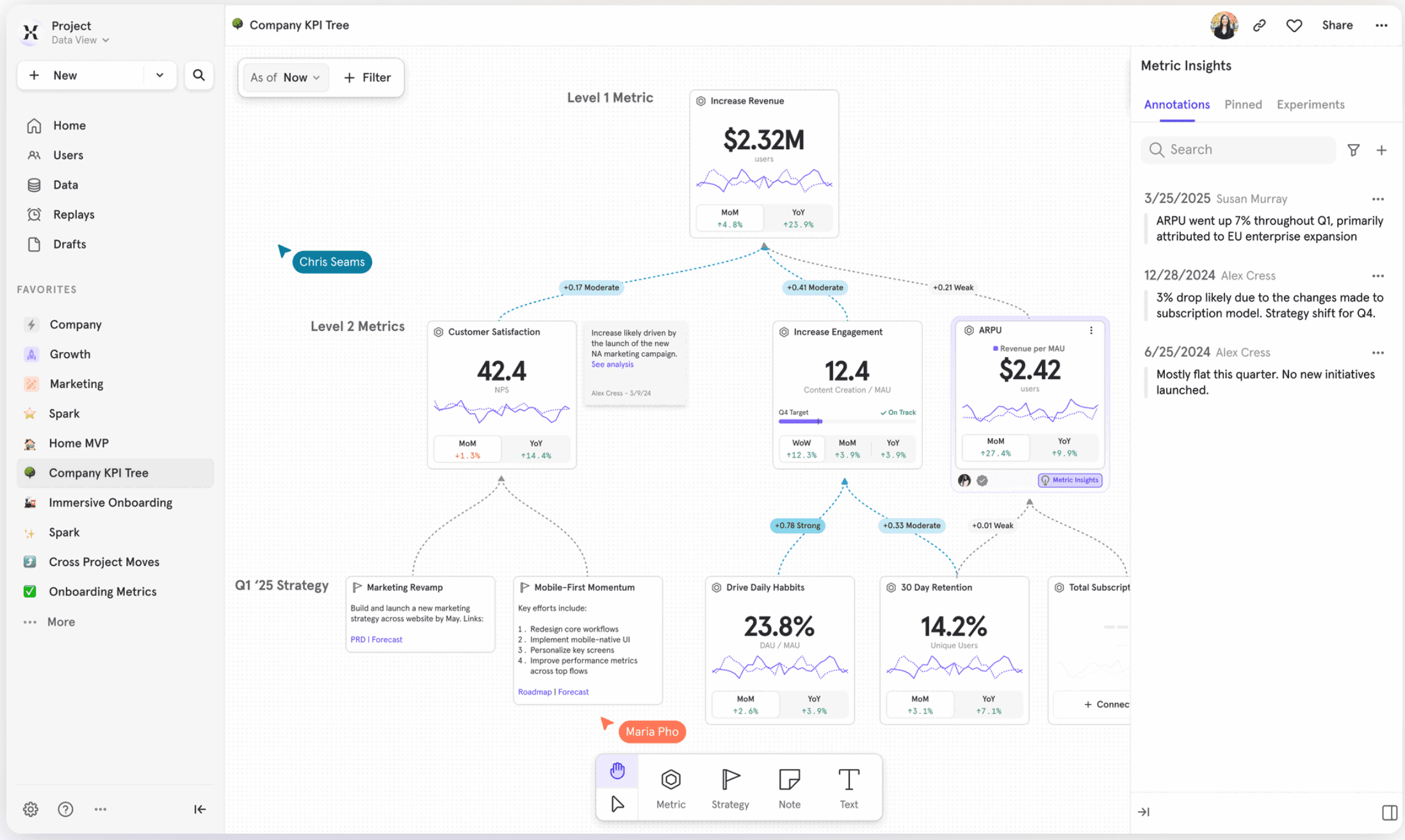
Mixpanel Metric Tree is a “live” logical decision-making framework used to represent relationships between metrics and show the flow between inputs and outputs. The “live” metrics make it possible to understand the quantitative impact and trace the inputs driving it.
It is one space that simultaneously depicts both quantitative and qualitative data along with additional context, making it possible to discuss insights as a team across functions and make data-driven decisions together.
Use Cases
- Data-driven decision: Clearly articulate what’s working vs not by looking at how your input metrics and initiatives are impacting your top business outcomes
- Align with your team, from Execs to ICs, and across teams on growth strategy & metrics by: Use this as the codified strategy map
- Collaborate on strategy, insights & actions during team rituals: Leverage this during weekly rituals to identify which areas require more focus, and add those insights in the tree for others to reference
- Evolve your metric tree, as your strategy evolves: With every planning cycle, update the initiatives and input metrics as goals and focus outcomes change.
- Use this as a plan to ensure you have the right data tracked: Use this as a guide to let you know which additional data needs to be tracked, or to ensure it’s modeled in the right way to define the metric
Quick Start
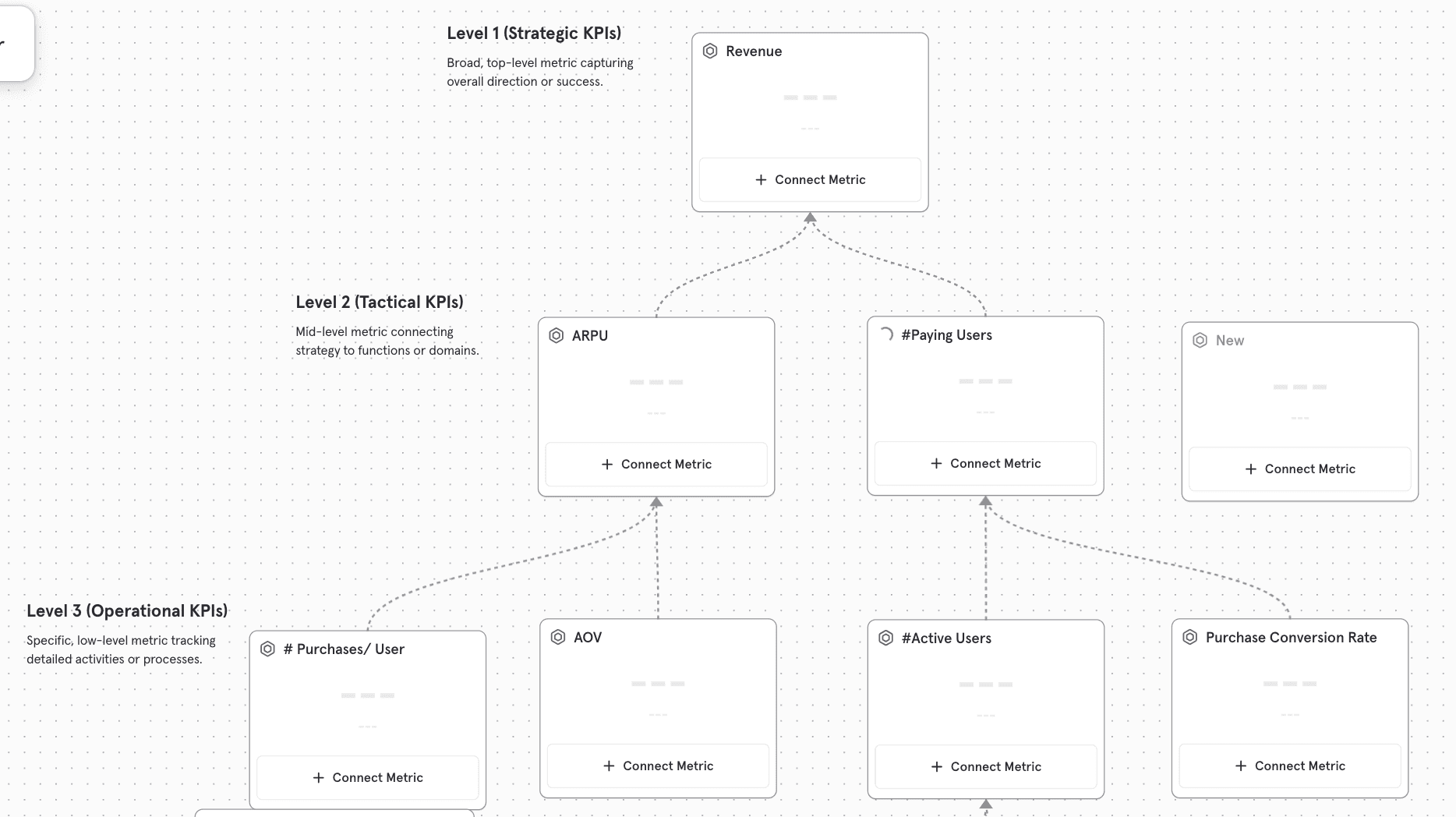
Step 1: Create your Metric Tree outline without data
The idea is to think through your strategy and the various hypotheses without confusing it with the data available today or the current value of metrics. Your strategy is more long-term. Use this strategy map to discuss and align with your teammates before putting in the effort to connect to a metric with data. To create a metric tree outline
- Add empty state metric cards to the tree. To create a metric card, choose
Metricfrom the toolbar below. - You can name these metric cards and link the connections. You can also add strategy cards to show the initiatives in place
Option: Build with AI
Don’t know where to start? Skip the blank canvas and let AI draft your first metric tree. When creating a new tree, click “Build with AI” under one of the two available starter templates.
You’ll be prompted to enter:
- Business name — the name of your company or product
- Business URL — your website or product URL, which helps the AI understand your domain and model
- Custom instructions (optional) — any specific context about your goals, team focus, or metrics you care about most
Click Submit, and within a few minutes you’ll see a fully structured metric tree generated for your business — complete with hypothesized input metrics, drivers, and connections up to your top-level KPI.
Think of it as a first draft, not a final answer. Once it’s generated, you can refine the structure, rename metrics, add or remove nodes, and connect real data just as you would with a manually built tree.
Tip: The more context you provide in the custom instructions field, the more tailored your tree will be. Custom instructions work at any scope — from a company-wide strategy to a single feature area. Here are some examples:
For a product leader building a team-wide strategy tree:
- “We’re a B2B SaaS company. Focus on the metrics that drive trial-to-paid conversion and long-term retention across our entire funnel.”
- “Build a tree rooted in ARR, with branches for new business, expansion, and churn. We have separate teams owning each.”
For a PM zeroing in on a specific initiative or feature area:
- “I own our onboarding flow. I want to understand what behaviors in the first 7 days predict long-term retention.”
- “We just launched a collaboration feature and I need to track whether adoption is driving engagement and upgrades.”
- “Focus on activation. Our north star is users who complete 3 core actions in week 1.”
Step 2: Make the metrics real with data
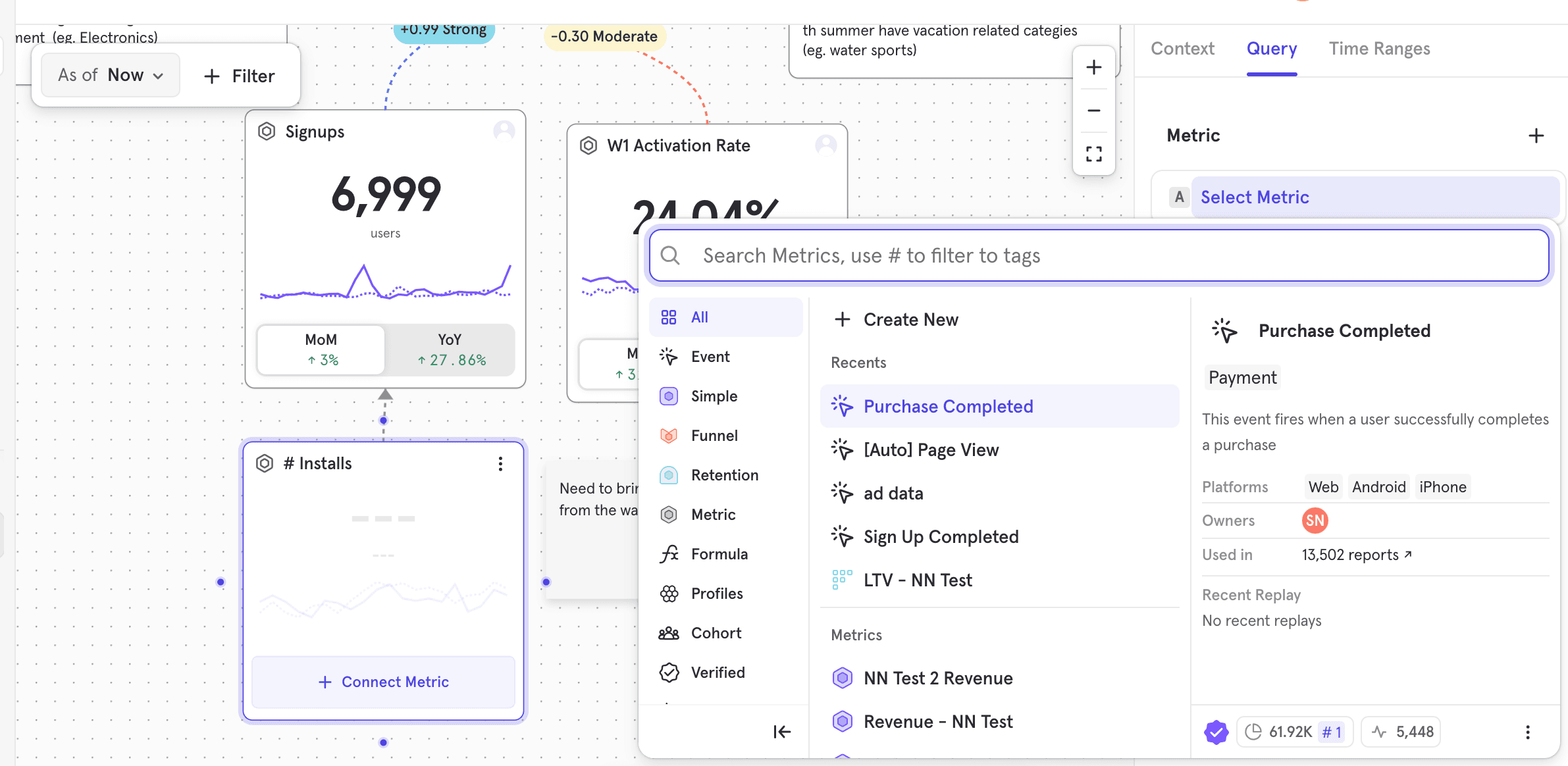
Click on connect metric, and connect the metric card to the metric with data. This is a regular Mixpanel query panel. You can choose to bring in saved metrics, or create a metric.
NOTE: We highly recommend saving metrics in the metric tree, especially those on the higher levels, so others on the project use only these standardized, verified metrics. Saved Metrics has additional abilities, such as adding owners to it.
Step 3: Add more context to your metrics
Make your tree more actionable for yourself and the team by adding context to it - whether it is pinned content with some interesting deep dive reports, or examining correlation and finding interesting insights to add to the logbook. You can learn more here.
Step 4: Share your metric tree & get started!
Metric Trees have similar permissions to Mixpanel boards. You can share the tree with anyone in the project: with view or edit access.
- Editors get access to edit the definition of metrics, add new metrics, add context, etc.
- Viewers get access to open and see the underlying formula definitions, and read the context and notes
Metric Tree is a multi-user space meant for collaboration and for you to use during your weekly team rituals. So many of you can be on the tree at the same time and edit it, and most importantly, add insights or actions for metrics you’re accountable for.
NOTE: When you hit undo, you undo only your last action. Also, the last edit on a metric persists for all.
Customize each metric
Time comparisons that are relevant to the metric
To ensure your metric is showing the most apt time comparisons, you can now customize at a metric level which time comparisons do you want to show in the metric tree view.
For example, if I wanted a QoQ view instead of YoY, I would select:
- Time range: Last 3M
- Compare to: Previous quarter
- Interval: week; Interval determines the number of data points you have displayed in the metric line chart
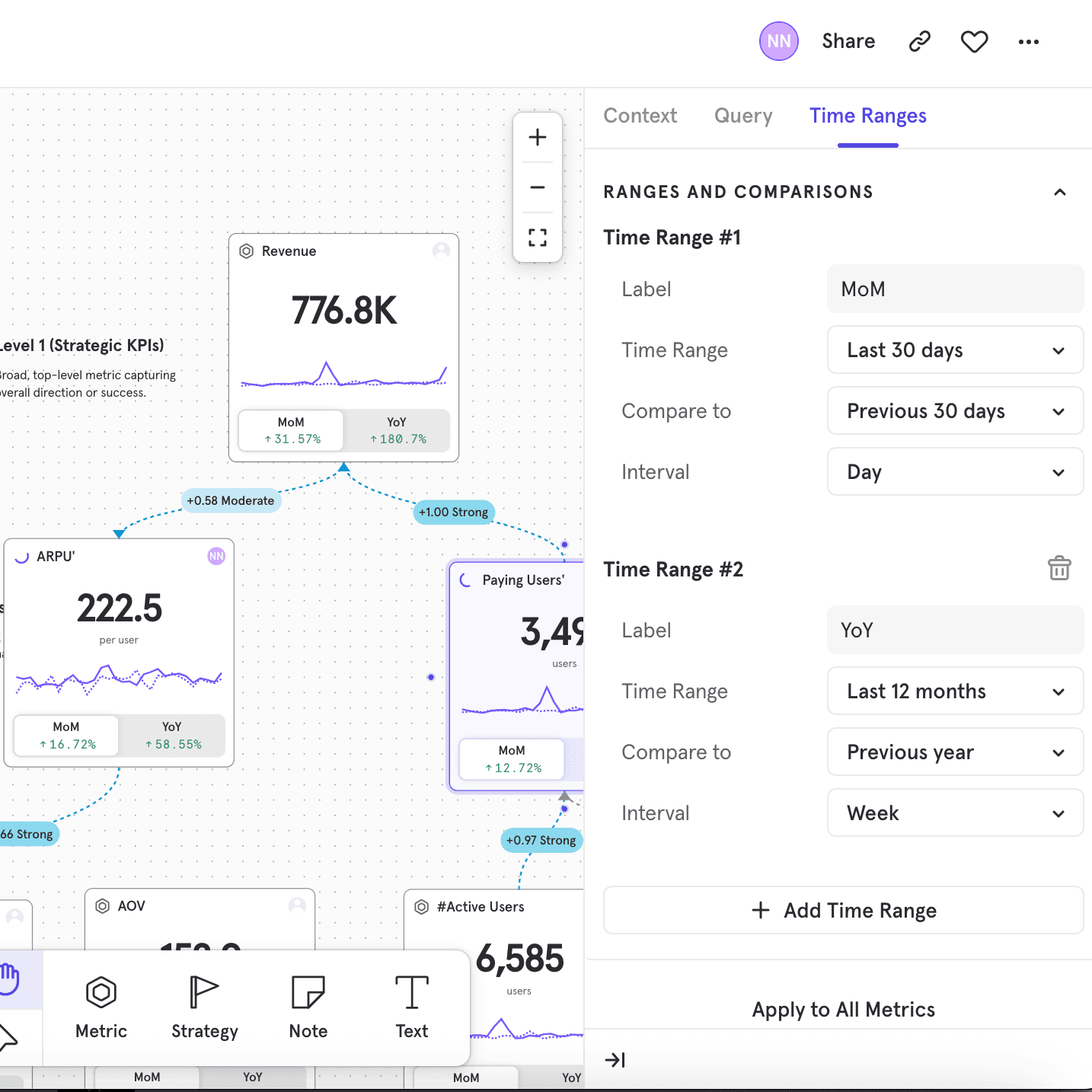
- You can change the default time comparison settings for your tree, i.e, all metrics, by clicking on
Apply to All Metricsafter setting up the right time ranges for one metric - You can add up to 3 time ranges per metric card
- On the metric card view, when you click on MoM, it shows the absolute value of the metric for the last 30 Days. If you switch and click on QoQ it will show you the absolute value of the metric for the last 3M
- If you switch the default “display” on the metric card, all the other cards that have that time range will also switch, so you can compare metrics across the tree in a similar period.
Add owner to keep a person accountable for the metric
For any eligible metric, you can click on the owner icon and assign an owner
You can assign an owner only to a saved metric

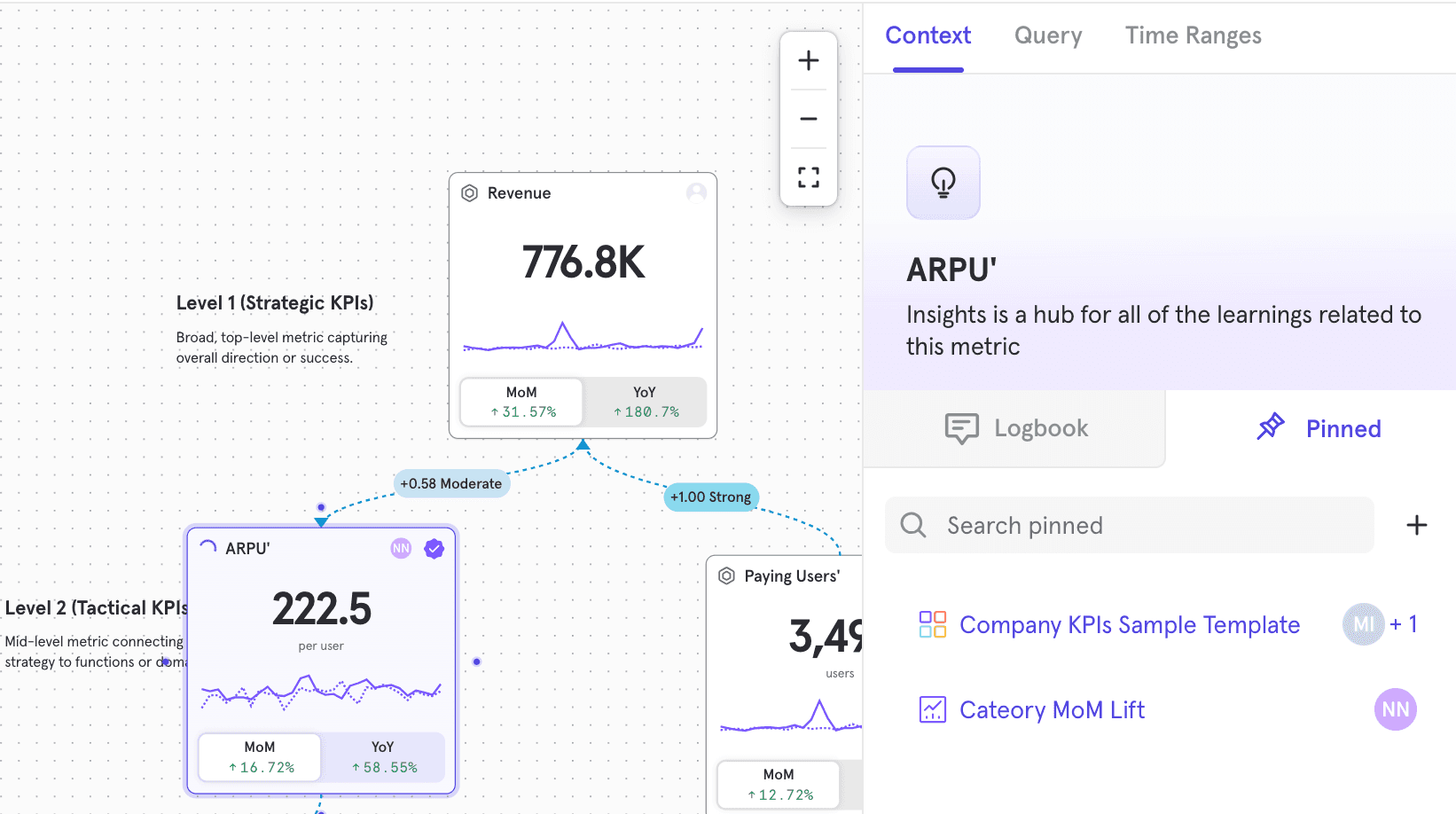
Pin contextual reports & boards to the metric, to enable deep-dive
Click on a metric. When the query panel opens, navigate to the Context tab. Within the Context tab, pin reports and board in the ‘Pinned’ tab
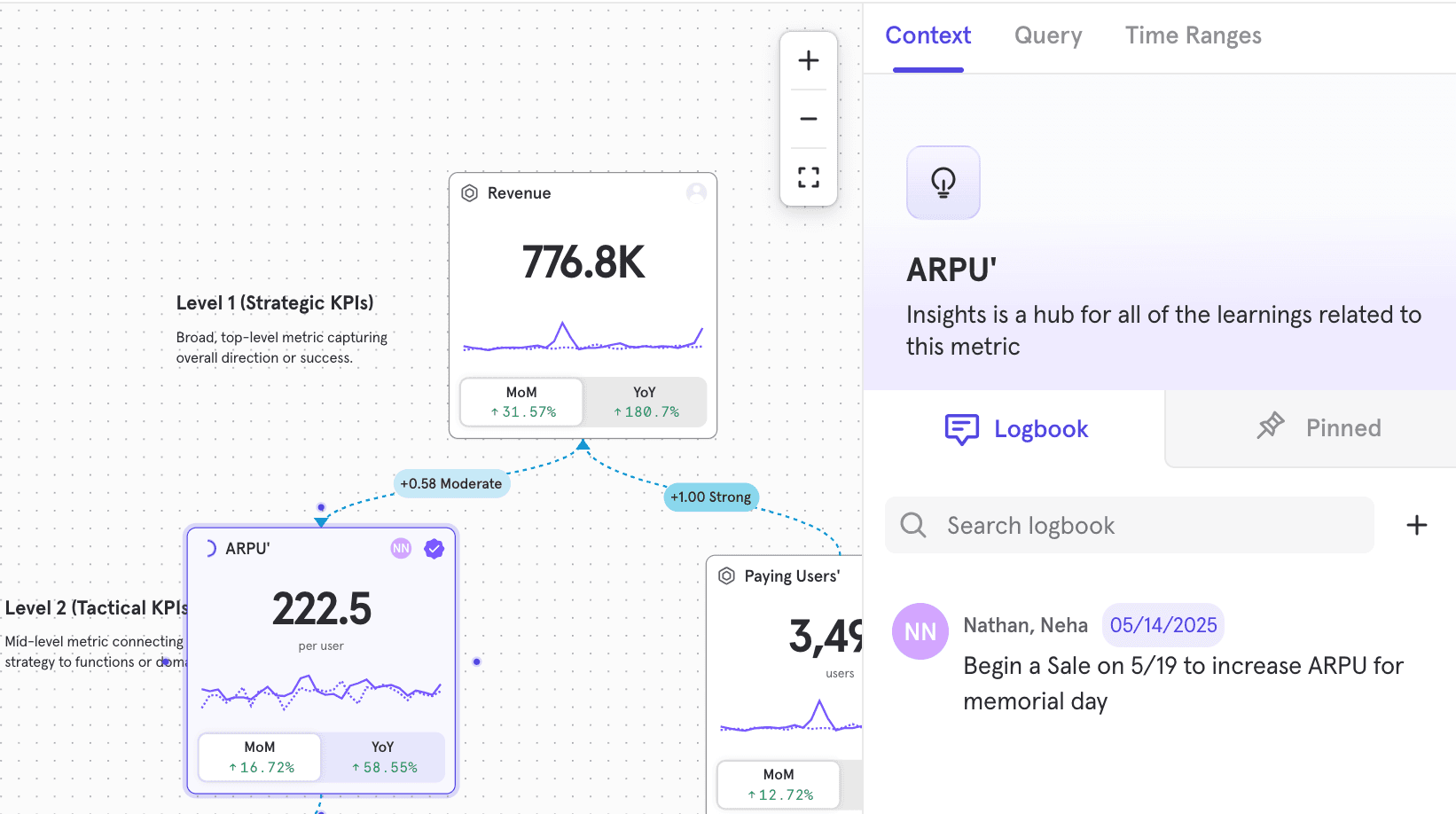
Add important insights to the logbook for future reference
Click on a metric. When the query panel opens, navigate to the Context tab. Within the Context tab, add entries into the ‘Logbook’ tab
FAQ
How do AI-generated metric trees work, and what data does Mixpanel use to generate them?
AI-generated metric trees are built using an outside-in analysis powered by OpenAI. The system draws on industry best practices, common growth models, and the context you provide about your product in the custom instructions field — such as your business model, team focus, or the specific outcome you’re trying to drive.
At this time, none of your Mixpanel data is used. The AI has no access to your events, user data, or existing metrics. Everything it generates is based on publicly available information and the details you choose to share in the prompt.
This means the generated tree is a starting hypothesis, not a data-validated model. Treat it as a well-informed first draft that reflects what’s known about your industry and product category — and then make it yours by connecting real metrics from your Mixpanel data.
What does the “As Of” control on the top left of the metric tree do?
As of determines the end date reference point for the metric tree.
For example, if you want to look at how the metric tree looked at the end of Q1, i.e, March 2025, you could set “As of 31 March 2025”. All the metrics in the metric tree which are based on last 30 Days, or the last 3 months etc, will look at measuring the value of last 30D as of 31 March 2025, i.e, 2-31 March 2025, instead of last 30D as of today.

What does Filtering a tree do?
Filtering a tree is similar to filtering a board. It filters every metric in the metric tree. If you’re looking to filter only a specific metric, please use inline filters.
How do I see the metric trend chart (metric time series)?
Access the 3-dot overflow menu on the top right of the metric tree. Click on Show/ Hide > Show Metric Chart.
If you want to look at a longer time series chart for a particular metric, go to the specific metric card, click on the overflow menu, and choose View Chart.
I want to move trees across projects. How do I do that?
You can copy a tree and paste a tree in a new project. To select the whole tree, use the select tool in the toolbar below, in the middle of the screen. Then Copy (Cmd + C), and Paste (Cmd + V) in the new project.
How many trees do you suggest we create?
Create minimal trees so there is a complete map of the strategy in one place vs across disparate trees. Ideally, start with one tree per company, and depending on the size, maybe create separate trees for each function or business line if required
Does the top of a metric tree have to be revenue-related?
No, it doesn’t have to. We generally ask people to start a tree at L2 or L3 level where there is more functional ownership, for example, marketing can own Volume of Sign-Ups or Product can own WAU (Weekly Active Users).
What is correlation? How do I access it?
Access the 3-dot overflow menu on the top right of the metric tree. Click on Show/ Hide > Show Correlation. Correlation numbers should show up across all the edges, i.e the connection between two metric cards.
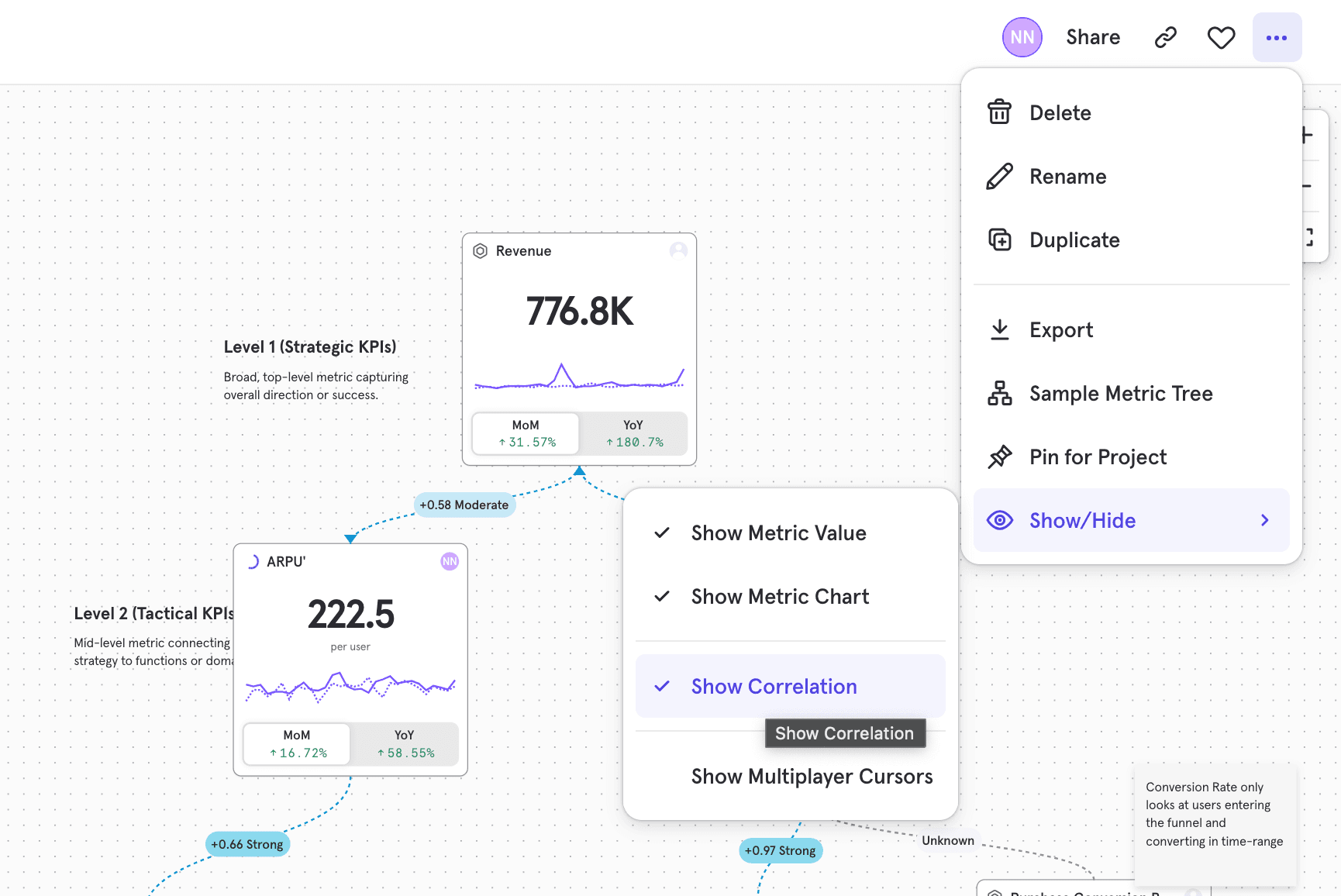
Mixpanel shows Pearson Correlation Coefficient. It measures the strength and direction of a linear relationship between two time-series data sets. It produces a value between -1 and 1
For two metrics, A and B, each return time-series data, we compute Pearson correlation using the following formula:
Where:
- and are individual values in the time-series data of metrics A and B.
- and are the mean (average) values of metrics A and B over the observed time period.
- is the Pearson correlation coefficient.
The resulting r-value determines the correlation score displayed on the edge.
Interpreting the Correlation Score
- (0.6 to 1.0) Strong Positive Correlation: The two metrics tend to move in the same direction strongly. As one metric increases, the other increases. Similarly, as one metric decreases, the other decreases
- (0.3 to 0.6) Moderate Positive Correlation : Some relationship exists
- (0.0 to 0.3) Weak Positive Correlation : Some relationship exists, but it is not strong
- (0.0) No Correlation: Changes in one metric do not seem to have changes on the other
- (-0.3 to 0.0) Weak Negative Correlation : Some inverse relationship exists, but it is not strong
- (-0.6 to -0.3) Moderate Negative Correlation : Some inverse relationship exists.
- (-1.0 to -0.6) Strong Negative Correlation : The two metrics strongly move in opposite directions. As one metric increases, the other decreases and vice versa.
To compute the Pearson correlation, we use:
- Time-series data from both metrics.
- Matching timestamps: Data points are aligned by timestamp to ensure proper comparison.
- A configurable time window: The correlation is typically calculated over a specified time range (e.g., the last 30 days)
- Some specific aspects to call out:
- If 2 time-series data have different lengths, correlations are calculated based on the overlapping lengths between the 2
- All correlations are run on a daily granularity, since event data is available on a daily basis to compute metrics at that granular view.
Limitations of Correlation
- Correlation does not imply causation: A high correlation does not necessarily mean that one metric influences the other.
- Non-linear relationships: Pearson correlation captures only linear relationships. If the metrics are related in a non-linear way, this score might not reflect the true relationship.
- Data Quality Matters: Missing or misaligned data points can affect the accuracy of the correlation score.
Was this page useful?